# Environments
> Group Ownkube deployments into stages such as Development, Staging and Production, with shared variables per stage and promotion between them.
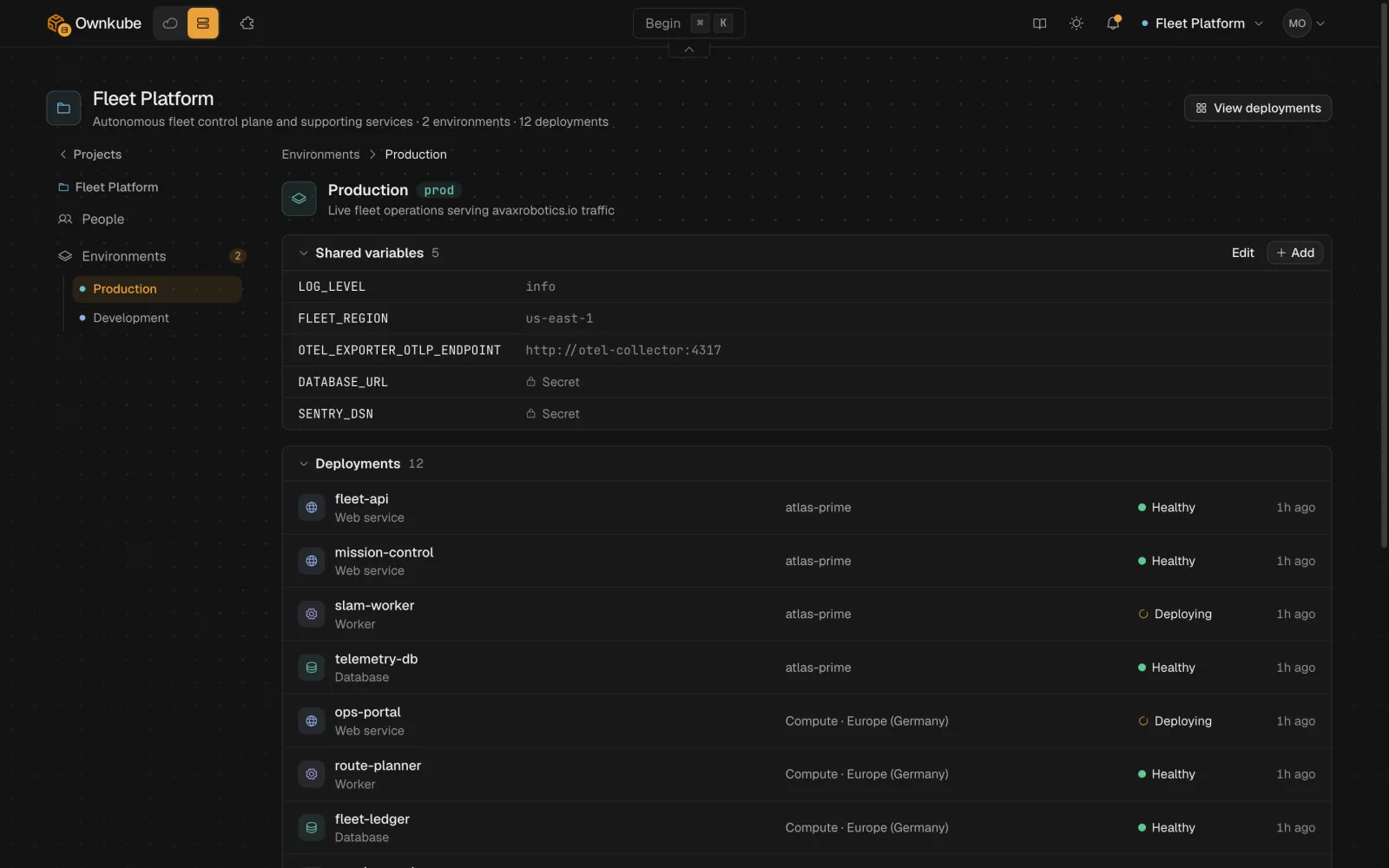
An **environment** is a stage: Development, Staging, Production, or anything you name. Every [deployment](/docs/deployments) belongs to one. Environments keep names unique, carry [shared variables](/docs/deployments/variables#shared-variables-on-an-environment), and are the unit you promote between.
 ## How environments work
- Every [organization](/docs/organizations) starts with **Development** and **Production**. Create as many more as you need.
- A deployment belongs to exactly one environment. The same name can exist in Development and Production without collision.
- Each environment has a colour that shows on every deployment card and page, so a production change is hard to mistake for a development one.
- Deployments in different environments are separate workloads with separate variables, scale and data. A Production database is never shared with Development by accident.
## Create an environment
1. **Open Settings**
Go to [**Settings**](https://app.ownkube.io/dashboard/settings) and open **Environments**, or press ⌘ K and choose **Environment**.
2. **Name and colour it**
Pick a name such as `staging` and a colour.
3. **Use it**
The new environment appears in the **Environment** picker when you create a deployment.
From the terminal: `okctl environments create`, `list`, `get`, `update` and `delete`.
## Shared variables
Open an environment's page to set variables every deployment in it inherits. A deployment that sets the same key keeps its own value. See [Variables](/docs/deployments/variables#shared-variables-on-an-environment).
## Promote between environments
Promotion copies the live revision of one deployment onto another, typically Staging to Production: the image or commit, port, resources and probes. Variables are not copied, so Production keeps its own secrets.
1. **Open the source deployment**
On the deployment you have tested, open **Activity** and choose **Promote** on the live revision.
2. **Pick the target**
Choose the deployment in the target environment. Ownkube shows the diff between the two before anything changes.
3. **Confirm**
The target rolls out the promoted revision like any other change, with [health checks](/docs/deployments/health-checks) gating traffic and a [rollback](/docs/deployments/rollbacks) one click away.
The CLI equivalent is `okctl deploy promote `. To clone a deployment into another environment for the first time, use **Copy** or `okctl deploy copy`.
## Limits
- Deleting an environment requires it to be empty.
- Environments are per organization, not per project; a project can have deployments in several environments.
- [Projects](/docs/organizations/projects)
- [Variables](/docs/deployments/variables)
- [Rollbacks and activity](/docs/deployments/rollbacks)
---
**Don't see a feature you need?** Email [support@ownkube.io](mailto:support@ownkube.io?subject=Feature%20request). Ownkube is shaped by the teams using it and we ship what our users ask for.
## Search
This site has a search endpoint: https://context7.com/api/v2/ask?siteKey=ask_c64dfe8ffaa8d3ad19576838&query=. It returns documentation that answers the question, with a source link for each part. No API key is needed. If nothing matches, it says so.
## How environments work
- Every [organization](/docs/organizations) starts with **Development** and **Production**. Create as many more as you need.
- A deployment belongs to exactly one environment. The same name can exist in Development and Production without collision.
- Each environment has a colour that shows on every deployment card and page, so a production change is hard to mistake for a development one.
- Deployments in different environments are separate workloads with separate variables, scale and data. A Production database is never shared with Development by accident.
## Create an environment
1. **Open Settings**
Go to [**Settings**](https://app.ownkube.io/dashboard/settings) and open **Environments**, or press ⌘ K and choose **Environment**.
2. **Name and colour it**
Pick a name such as `staging` and a colour.
3. **Use it**
The new environment appears in the **Environment** picker when you create a deployment.
From the terminal: `okctl environments create`, `list`, `get`, `update` and `delete`.
## Shared variables
Open an environment's page to set variables every deployment in it inherits. A deployment that sets the same key keeps its own value. See [Variables](/docs/deployments/variables#shared-variables-on-an-environment).
## Promote between environments
Promotion copies the live revision of one deployment onto another, typically Staging to Production: the image or commit, port, resources and probes. Variables are not copied, so Production keeps its own secrets.
1. **Open the source deployment**
On the deployment you have tested, open **Activity** and choose **Promote** on the live revision.
2. **Pick the target**
Choose the deployment in the target environment. Ownkube shows the diff between the two before anything changes.
3. **Confirm**
The target rolls out the promoted revision like any other change, with [health checks](/docs/deployments/health-checks) gating traffic and a [rollback](/docs/deployments/rollbacks) one click away.
The CLI equivalent is `okctl deploy promote `. To clone a deployment into another environment for the first time, use **Copy** or `okctl deploy copy`.
## Limits
- Deleting an environment requires it to be empty.
- Environments are per organization, not per project; a project can have deployments in several environments.
- [Projects](/docs/organizations/projects)
- [Variables](/docs/deployments/variables)
- [Rollbacks and activity](/docs/deployments/rollbacks)
---
**Don't see a feature you need?** Email [support@ownkube.io](mailto:support@ownkube.io?subject=Feature%20request). Ownkube is shaped by the teams using it and we ship what our users ask for.
## Search
This site has a search endpoint: https://context7.com/api/v2/ask?siteKey=ask_c64dfe8ffaa8d3ad19576838&query=. It returns documentation that answers the question, with a source link for each part. No API key is needed. If nothing matches, it says so.