# Organizations and members
> An organization owns your projects, deployments and wallet. Invite teammates by email, give them owner, admin or member roles, and switch between organizations.
Everything you create on Ownkube belongs to an **organization**: projects, environments, deployments, datastores, connected repositories and the wallet that pays for them. You get one when you sign up. Teammates you invite see the same dashboard, scoped to what the organization owns.
 ## Settings
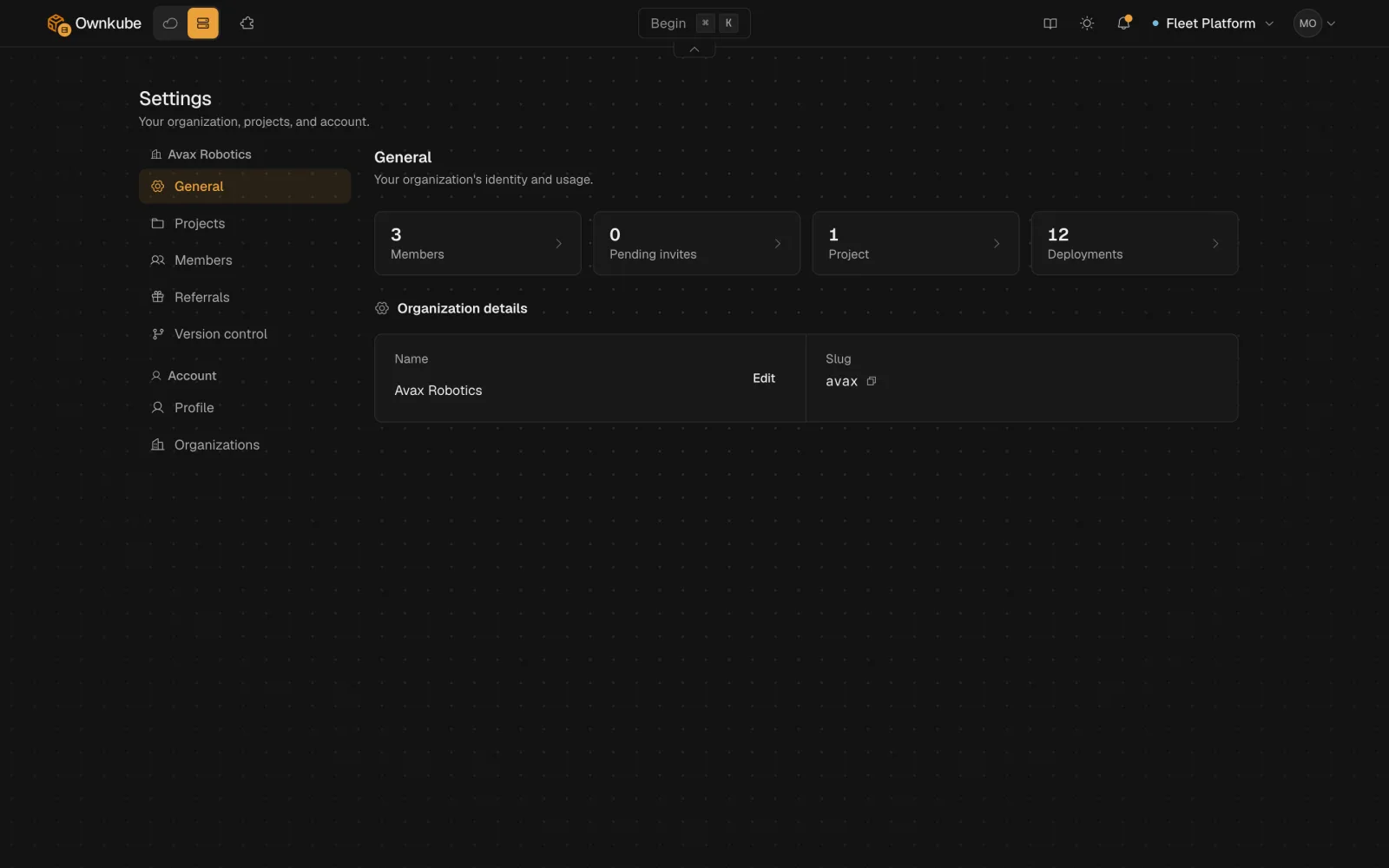
Open [Settings](https://app.ownkube.io/dashboard/settings) from the sidebar. The organization sections are:
| Section | What it holds |
|---|---|
| **General** | The organization's name and a summary of its usage. Rename it here. |
| **Projects** | Group environments and deployments by app or team. See [Projects](/docs/organizations/projects). |
| **Members** | Everyone who can access the organization, their roles and pending invites. |
| **Version control** | The GitHub and GitLab accounts connected for source deploys. See [Builds](/docs/deployments/builds#connect-github-or-gitlab). |
| **Cloud accounts** | AWS accounts connected for the own-cloud path. See [Connect AWS](/docs/own-cloud/connect-aws). |
The account sections below them (**Profile**, **Organizations**, **SSH keys**) belong to you rather than to the organization and follow you across every organization you join.
## Roles
| Role | What it can do |
|---|---|
| **Owner** | Everything, including billing. The owner receives spend alerts and suspension emails. |
| **Admin** | Can also manage members and settings. Runs destructive, billing and credential operations: delete deployments, reset database passwords, turn on write mode in the data console, manage the wallet. |
| **Member** | Can deploy and manage resources: create and configure deployments, restart, roll back, read logs and metrics. |
On Pay as you go and Personal the organization is owner-only. Roles and multiple members come with **Team**; see [Plans](/docs/billing/plans).
## Invite a teammate
## Settings
Open [Settings](https://app.ownkube.io/dashboard/settings) from the sidebar. The organization sections are:
| Section | What it holds |
|---|---|
| **General** | The organization's name and a summary of its usage. Rename it here. |
| **Projects** | Group environments and deployments by app or team. See [Projects](/docs/organizations/projects). |
| **Members** | Everyone who can access the organization, their roles and pending invites. |
| **Version control** | The GitHub and GitLab accounts connected for source deploys. See [Builds](/docs/deployments/builds#connect-github-or-gitlab). |
| **Cloud accounts** | AWS accounts connected for the own-cloud path. See [Connect AWS](/docs/own-cloud/connect-aws). |
The account sections below them (**Profile**, **Organizations**, **SSH keys**) belong to you rather than to the organization and follow you across every organization you join.
## Roles
| Role | What it can do |
|---|---|
| **Owner** | Everything, including billing. The owner receives spend alerts and suspension emails. |
| **Admin** | Can also manage members and settings. Runs destructive, billing and credential operations: delete deployments, reset database passwords, turn on write mode in the data console, manage the wallet. |
| **Member** | Can deploy and manage resources: create and configure deployments, restart, roll back, read logs and metrics. |
On Pay as you go and Personal the organization is owner-only. Roles and multiple members come with **Team**; see [Plans](/docs/billing/plans).
## Invite a teammate
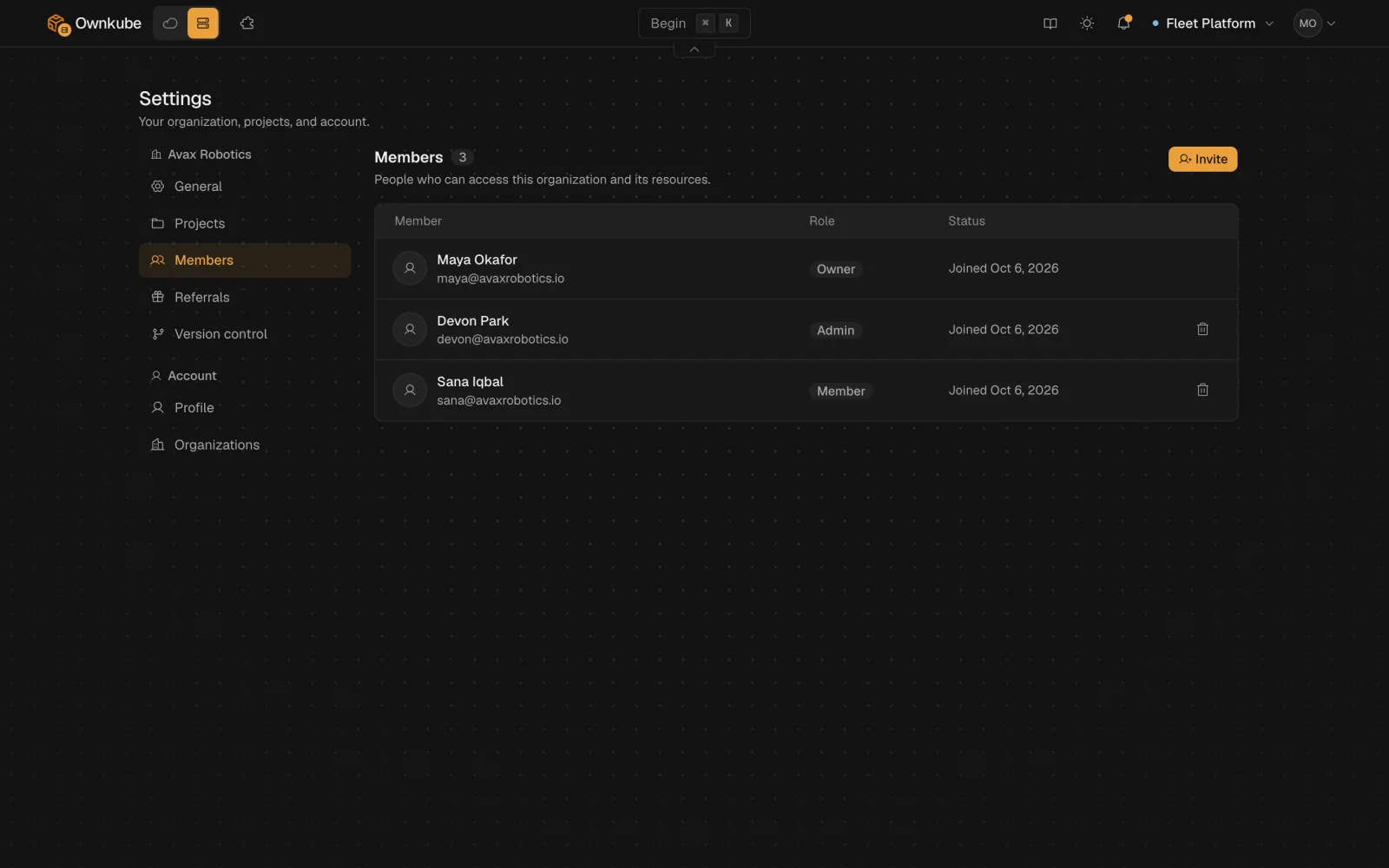 1. Open [Settings](https://app.ownkube.io/dashboard/settings) and go to **Members**.
2. Enter one or more email addresses, separated by commas, and pick a role.
3. Click **Send invitation**. The invite appears under **Pending invites** until it is accepted, and you can cancel it from there.
The invitee signs in with that email and finds the organization waiting in their **Organizations** section. Owners and admins can change a member's role or remove them later from the same list. Removing a member revokes their dashboard, CLI and MCP access at once.
## Switch or create an organization
Your account can belong to several organizations. Switch between them from the **Organizations** section of Settings, or from the organization menu at the top of the sidebar. **Start a new one** from the same place; the plan tier that allows more than one organization is Team.
From the terminal, `okctl organizations list` prints the organizations you belong to, and `okctl link --organization ` pins a directory to one of them.
- [Projects](/docs/organizations/projects)
- [Plans and pricing](/docs/billing/plans)
- [Security](/docs/security)
---
**Don't see a feature you need?** Email [support@ownkube.io](mailto:support@ownkube.io?subject=Feature%20request). Ownkube is shaped by the teams using it and we ship what our users ask for.
## Search
This site has a search endpoint: https://context7.com/api/v2/ask?siteKey=ask_c64dfe8ffaa8d3ad19576838&query=. It returns documentation that answers the question, with a source link for each part. No API key is needed. If nothing matches, it says so.
1. Open [Settings](https://app.ownkube.io/dashboard/settings) and go to **Members**.
2. Enter one or more email addresses, separated by commas, and pick a role.
3. Click **Send invitation**. The invite appears under **Pending invites** until it is accepted, and you can cancel it from there.
The invitee signs in with that email and finds the organization waiting in their **Organizations** section. Owners and admins can change a member's role or remove them later from the same list. Removing a member revokes their dashboard, CLI and MCP access at once.
## Switch or create an organization
Your account can belong to several organizations. Switch between them from the **Organizations** section of Settings, or from the organization menu at the top of the sidebar. **Start a new one** from the same place; the plan tier that allows more than one organization is Team.
From the terminal, `okctl organizations list` prints the organizations you belong to, and `okctl link --organization ` pins a directory to one of them.
- [Projects](/docs/organizations/projects)
- [Plans and pricing](/docs/billing/plans)
- [Security](/docs/security)
---
**Don't see a feature you need?** Email [support@ownkube.io](mailto:support@ownkube.io?subject=Feature%20request). Ownkube is shaped by the teams using it and we ship what our users ask for.
## Search
This site has a search endpoint: https://context7.com/api/v2/ask?siteKey=ask_c64dfe8ffaa8d3ad19576838&query=. It returns documentation that answers the question, with a source link for each part. No API key is needed. If nothing matches, it says so.