
Postgres
Ownkube runs managed PostgreSQL as a database deployment. You choose the version and a box size, Ownkube provisions it with encryption and connection pooling, keeps it private, and generates the credentials. Backups, standby replicas and public access are switches on the database’s Settings tab.
Create a database
Section titled “Create a database”- Press ⌘ K on the dashboard or click New, then choose Database.
- Pick Postgres 17 or 18. The major version is fixed at creation.
- Pick a box and a storage size. Start small; both can grow later without recreating the database.
- Pick the environment and region the app that will use it lives in.
- Click Deploy. The database is ready in about a minute. Its Overview tab shows the host, port, database name, user and a copy button for the password.
okctl deploy create -f db.json{ "resourceType": "database", "name": "app-db", "region": "asia", "environmentId": "<environment-id>", "config": { "engine": "postgres", "version": "18", "skuId": "db-1", "storage": { "size": "10Gi" } }}okctl regions list prints the region slugs, okctl environments list the environment ids and okctl boxes list the box ids.
Then okctl deploy status <id> until it reports healthy.
Connect an app
Section titled “Connect an app”Linking is how an app learns the address and credentials. Nothing is copied by hand.
- Open the app’s page, click Link under Linked datastores, and pick the database. Or run
okctl deploy link <app-id> <db-id>. - Ownkube adds these secret variables to the app and starts a rollout:
DATABASE_URL=postgresql://user:pass@host:5432/dbnamePGHOST=...PGPORT=5432PGUSER=...PGPASSWORD=...PGDATABASE=...Any Postgres driver reads DATABASE_URL as is. The host is a private network address inside your environment. An app in another environment cannot reach it; create a database per environment instead.
Need the full connection details yourself? okctl deploy connection-info <db-id> prints them, credentials included. The MCP server never returns them.
A database is always reserved: it holds memory and runs continuously, so it bills a flat monthly box price plus storage rather than the per-minute meter apps use.
| Box | vCPU | Memory | Price per month | Tier |
|---|---|---|---|---|
| DB 0.5 | 0.25 vCPU | 0.5 GiB | $4 | every tier |
| DB 1 | 0.5 vCPU | 1 GiB | $8 | every tier |
| DB 2 | 0.5 vCPU | 2 GiB | $12 | every tier |
| DB 4 | 1 vCPU | 4 GiB | $28 | Personal or Team |
| DB 8 | 2 vCPU | 8 GiB | $54 | Personal or Team |
| DB 16 | 4 vCPU | 16 GiB | $104 | Personal or Team |
| DB 4 Dedicated | 1 vCPU (dedicated) | 4 GiB | $48 | Team |
| DB 8 Dedicated | 2 vCPU (dedicated) | 8 GiB | $96 | Team |
| DB 16 Dedicated | 4 vCPU (dedicated) | 16 GiB | $192 | Team |
- Dedicated boxes give the database a dedicated vCPU, for steady heavy load. They need the Team plan.
- Storage is $0.25 per GB per month, billed per instance. A database on a Pay as you go account can use up to DB 2.
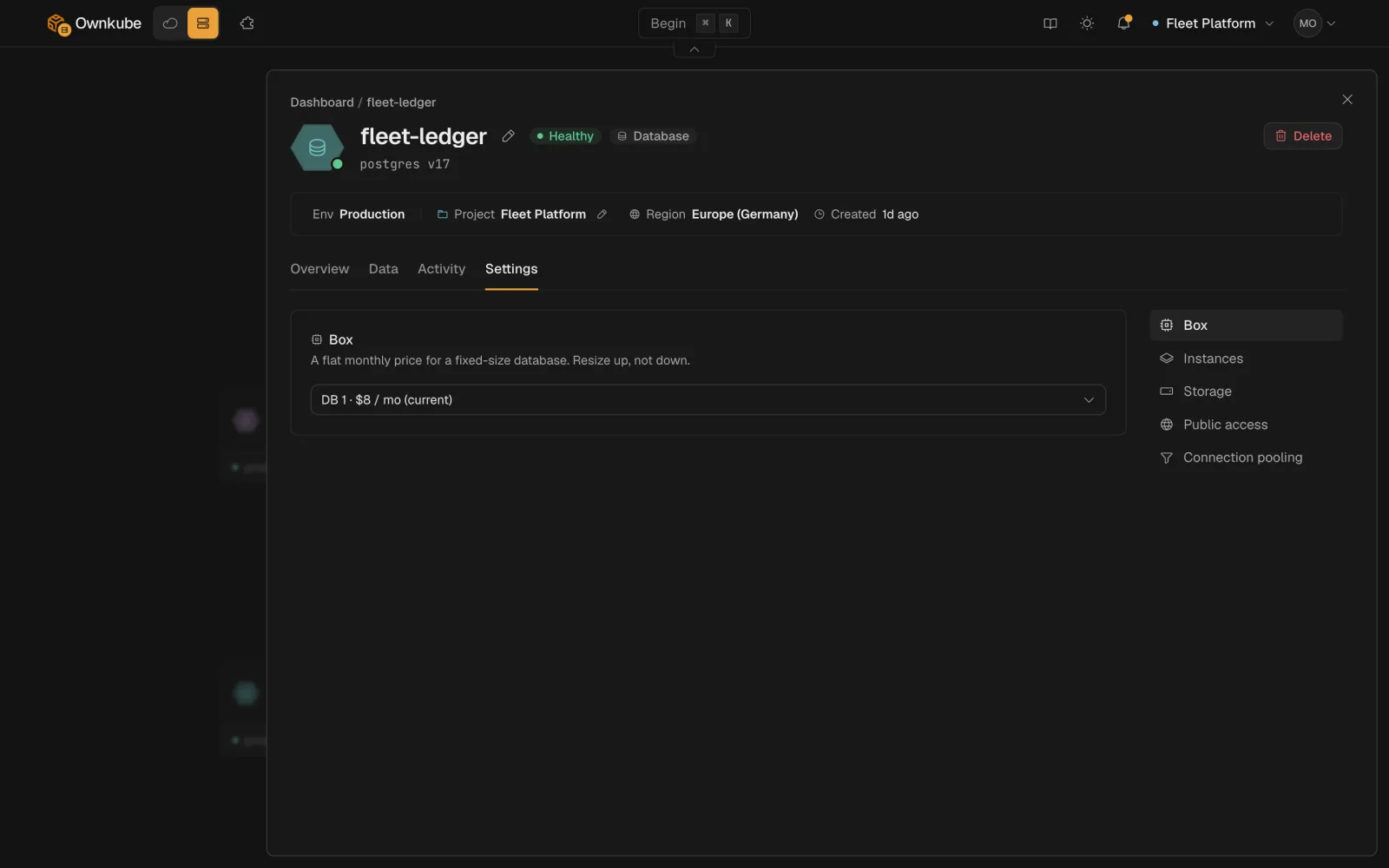
- Change the box from Settings > Box. The database restarts briefly and keeps its data. See Plans and pricing for the plan ceilings.
Backups and point-in-time recovery
Section titled “Backups and point-in-time recovery”Backups are off by default. Turn on Automated backups on the Settings tab of a database on a Personal or Team account. Ownkube then takes a weekly base backup and streams every change continuously, so you can restore to any moment in the last 7 days. Backups are encrypted and included in the storage price.
- Turning backups on or off restarts the database briefly.
- To restore, open Point-in-time recovery on the Settings tab, pick a timestamp inside the window and confirm. The database goes offline while it is rebuilt from the backup, which can take a few minutes, and the rebuild is recorded on the Activity tab.
- Pay as you go databases cannot turn backups on.
Standby replicas
Section titled “Standby replicas”On a Team account, set Instances to 2 or 3 to run a primary plus one or two standbys with streaming replication and automatic failover. If the primary fails, a standby takes over and the app’s connection string keeps working. Each standby bills as another box of the same size, and storage bills per instance.
Connection pooling
Section titled “Connection pooling”Pooling is on by default and the connection string points at the pooler, so short-lived connections from serverless-style code or many replicas do not exhaust Postgres. Turn it off from Settings > Connection pooling if your app needs session-level features the pooler does not pass through, such as LISTEN/NOTIFY or prepared statements across transactions.
Public access
Section titled “Public access”A database is private by default. If you need to reach it from a local tool, a GUI client or a CI runner, turn on Public access on the Settings tab. Ownkube then:
- allocates a stable public hostname for the database
- issues a dedicated TLS certificate for that hostname
- routes traffic to the database over an encrypted connection
Connect with TLS verification on. Because several databases share the public entry point, your client has to send the hostname in the TLS handshake (direct TLS negotiation). With psql:
psql "host=<host> port=5432 dbname=<db> user=<user> sslmode=verify-full sslnegotiation=direct"Public access is also what the data console and Idle to zero need. Prefer the private address for app traffic, and okctl connect for one-off sessions from your laptop.
Sleep when idle
Section titled “Sleep when idle”Turn on Idle to zero and the database parks itself when nothing has been connected for a while. The next connection, from an app in the environment or over the public address, wakes it with the data intact. A wake is a real cold start, so expect the first query to take a few seconds. A sleeping database bills storage only. See Sleep and wake.
Reset the password
Section titled “Reset the password”Open the Overview tab and click Reset password, or run:
okctl deploy reset-password <db-id>Ownkube generates a new password, updates the secret variables on every linked app and rolls those apps out so they pick it up. Anything connecting over the public address with the old password stops working immediately.
Upgrades
Section titled “Upgrades”Each database runs on a DB platform version, the runtime Ownkube ships around Postgres. When a newer version is available the Overview tab shows an Upgrade control; the swap is drain-safe and the database stays reachable. The Postgres major version itself (17 or 18) does not change: create a new database and migrate when you want to move majors.
Own cloud
Section titled “Own cloud”The same database type runs on a cluster in your AWS account. A Starter cluster runs a single instance and archives backups to an S3 bucket in your account; a Production (EKS) cluster also supports standbys. Public access works on Starter. See Run in your own AWS account.