
Organizations and members
Everything you create on Ownkube belongs to an organization: projects, environments, deployments, datastores, connected repositories and the wallet that pays for them. You get one when you sign up. Teammates you invite see the same dashboard, scoped to what the organization owns.
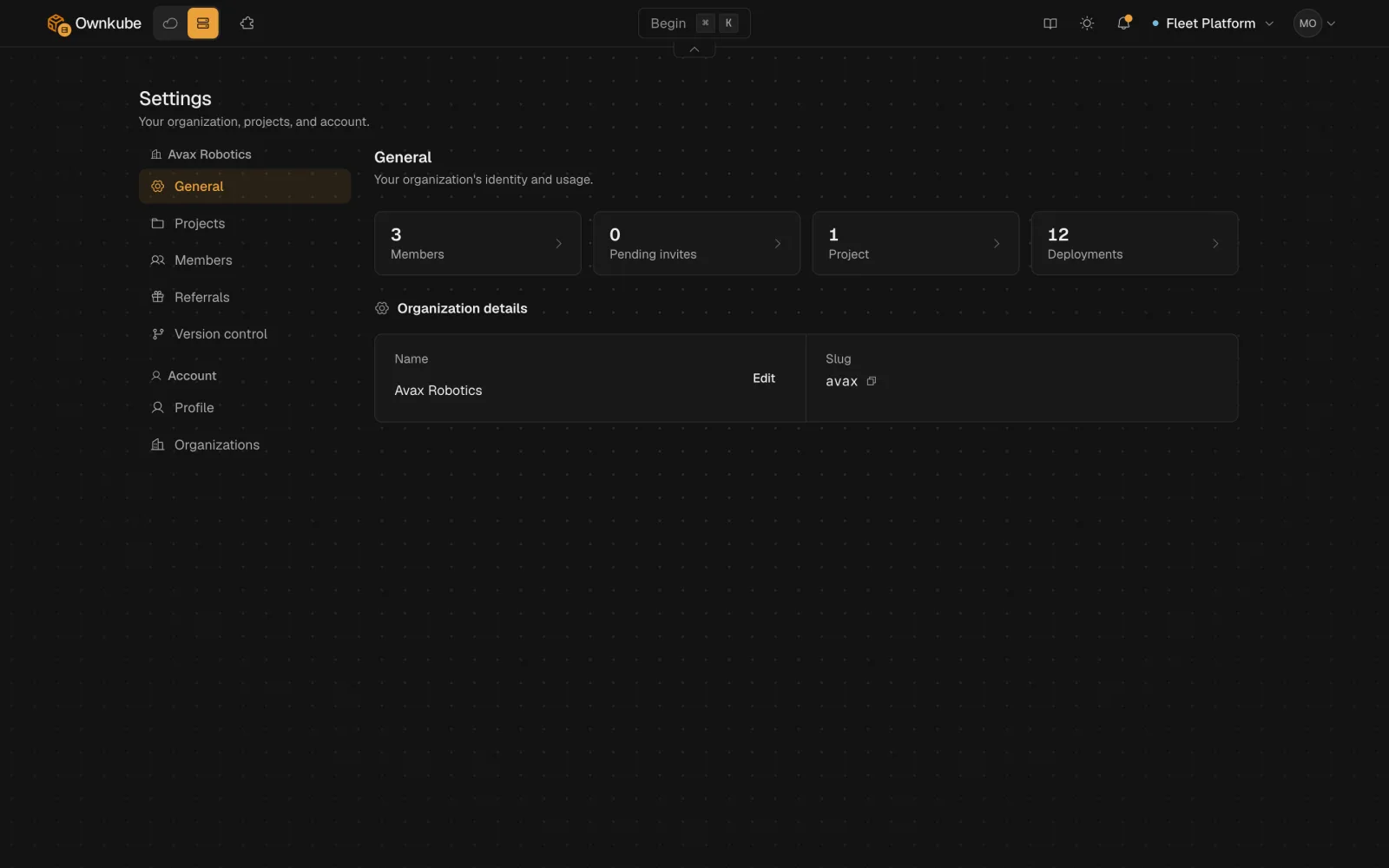
Settings
Section titled “Settings”Open Settings from the sidebar. The organization sections are:
| Section | What it holds |
|---|---|
| General | The organization’s name and a summary of its usage. Rename it here. |
| Projects | Group environments and deployments by app or team. See Projects. |
| Members | Everyone who can access the organization, their roles and pending invites. |
| Version control | The GitHub and GitLab accounts connected for source deploys. See Builds. |
| Cloud accounts | AWS accounts connected for the own-cloud path. See Connect AWS. |
The account sections below them (Profile, Organizations, SSH keys) belong to you rather than to the organization and follow you across every organization you join.
| Role | What it can do |
|---|---|
| Owner | Everything, including billing. The owner receives spend alerts and suspension emails. |
| Admin | Can also manage members and settings. Runs destructive, billing and credential operations: delete deployments, reset database passwords, turn on write mode in the data console, manage the wallet. |
| Member | Can deploy and manage resources: create and configure deployments, restart, roll back, read logs and metrics. |
On Pay as you go and Personal the organization is owner-only. Roles and multiple members come with Team; see Plans.
Invite a teammate
Section titled “Invite a teammate”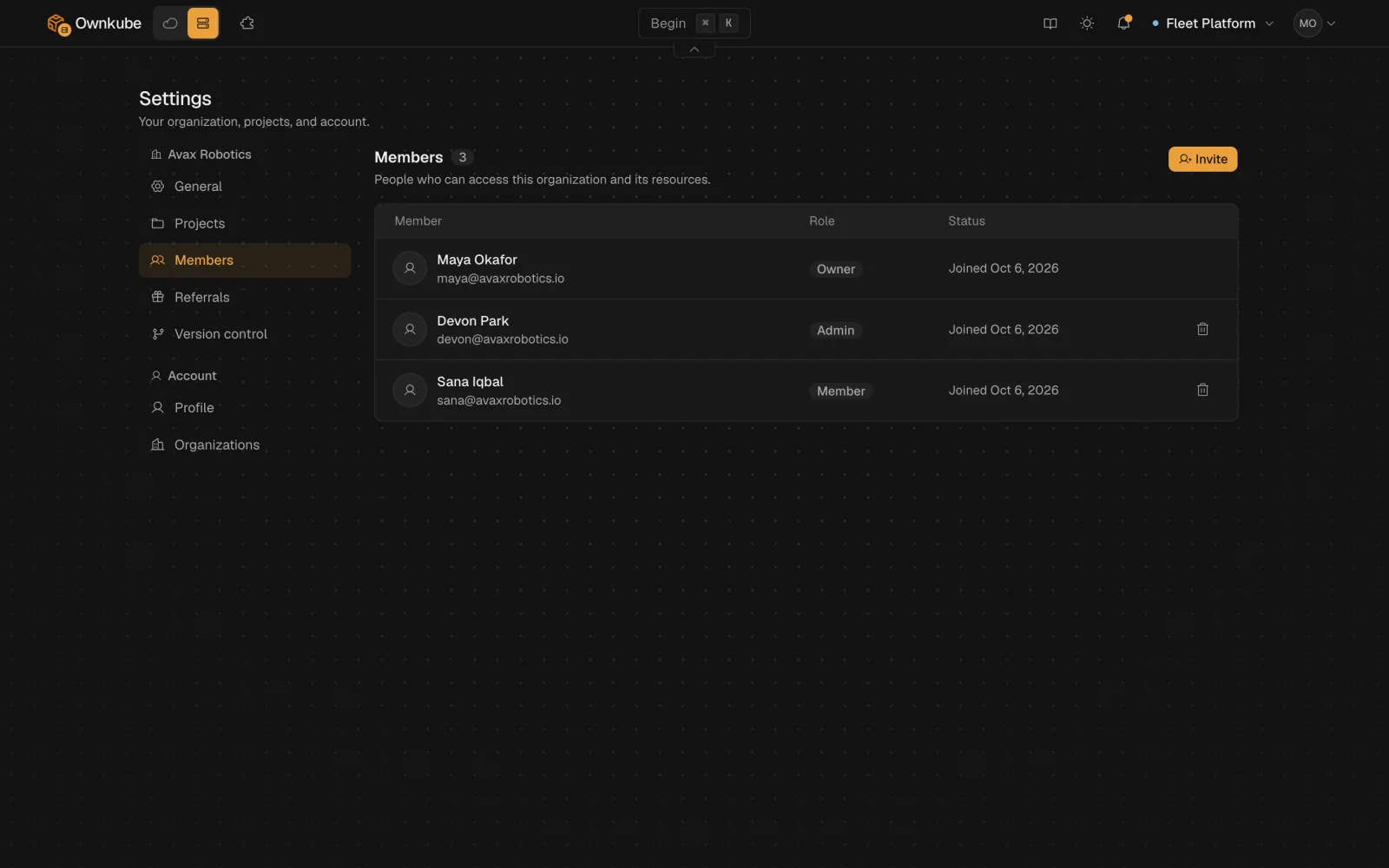
-
Open Settings and go to Members.
-
Enter one or more email addresses, separated by commas, and pick a role.
-
Click Send invitation. The invite appears under Pending invites until it is accepted, and you can cancel it from there.
The invitee signs in with that email and finds the organization waiting in their Organizations section. Owners and admins can change a member’s role or remove them later from the same list. Removing a member revokes their dashboard, CLI and MCP access at once.
Switch or create an organization
Section titled “Switch or create an organization”Your account can belong to several organizations. Switch between them from the Organizations section of Settings, or from the organization menu at the top of the sidebar. Start a new one from the same place; the plan tier that allows more than one organization is Team.
From the terminal, okctl organizations list prints the organizations you belong to, and okctl link --organization <id> pins a directory to one of them.