
Create a deployment
This is the long version of the Quickstart: every field in the create flow, what it does, and what to check once the app is live. The same flow creates every resource type.
Before you start
Section titled “Before you start”- For a source build, connect the Ownkube GitHub App or your GitLab account under Version control in Settings so your repositories appear in the picker. See Builds and source.
- For an image deployment, have the image reference and tag ready, such as
ghcr.io/owner/app:1.2.0. - Know the port your app listens on. Most frameworks read it from a
PORTvariable; the framework guides list the right value.
The create flow
Section titled “The create flow”-
Open the flow
From the dashboard click New, or press ⌘ K and choose Deployment.
-
Pick the resource type
Web app, Worker, Job, Database or Cache. The rest of the form changes to match. Databases and caches skip source, port and variables; see Postgres and Valkey cache.
-
Name it and place it
Choose a name (lowercase letters, numbers and dashes, unique within the environment), a project, an environment and a region. The region is fixed once created.
-
Choose the source
Pick the repository and branch from your connected GitHub or GitLab account. Ownkube detects a Dockerfile in the repository and uses it; without one, the automatic build detects the language. Set a root directory if your app lives in a subfolder of a monorepo. Every later push to the branch builds and deploys.
Enter the image and tag. Public images need no connection. Pin a tag such as
1.2.0or a short commit SHA rather thanlatest. -
Set the port
The port your container listens on, for example
3000or8080. Ownkube routes the public hostname and private traffic to it. -
Add variables
Add
KEY=valuepairs. Flip Secret on anything sensitive; secrets are masked in the UI and never appear in logs or the activity diff. Values the environment shares with every deployment are inherited automatically. See Variables. -
Size it
Leave the defaults for a first deploy. Metered CPU and memory bill for what the app uses; a reserved box bills a flat rate. Autoscaling, health checks and sleep can wait until the app runs.
-
Create
Click Create deployment. The page switches to the deployment’s Overview and shows the build and rollout as they happen.
Watch it come up
Section titled “Watch it come up”For a source build, the Builder tab shows the pipeline: Queued, Build, Image, Deploy, Live, with the build log streaming under it.
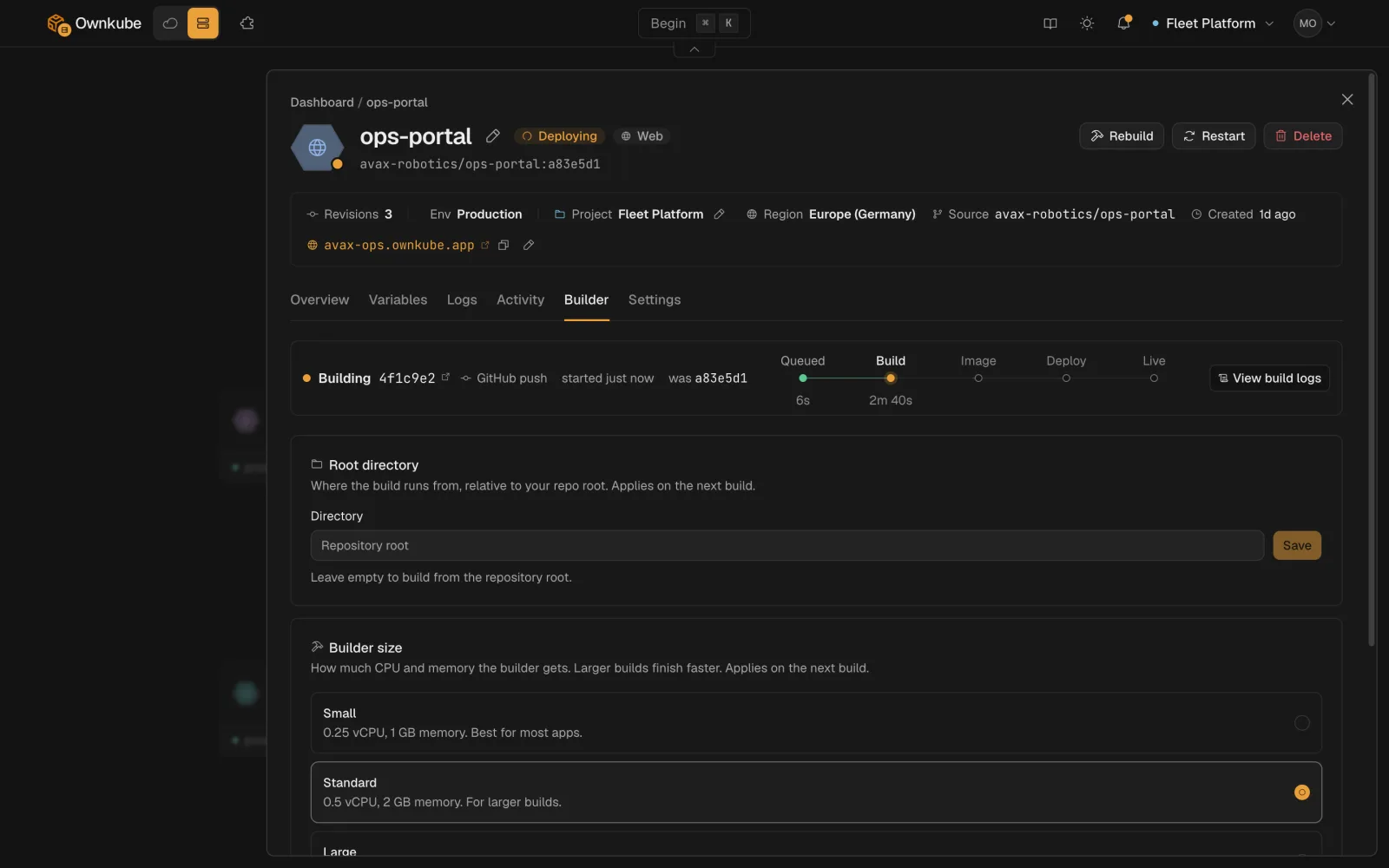
Status on Overview moves from Syncing to Healthy when the container passes its health checks. Open the hostname. If it stays Degraded, the Logs tab usually shows why: a crash on start, the wrong port, or a missing variable. See Observability for every status and what to do.
Common first-deploy mistakes
Section titled “Common first-deploy mistakes”| Symptom | Likely cause | Fix |
|---|---|---|
| Degraded, logs show the app started | Port mismatch | Set Port to the port the app actually binds, and bind on 0.0.0.0, not localhost. |
| Degraded, app exits immediately | Missing variable | Compare the Logs tab against your .env; add the variable and save. |
| Build fails at install | Wrong root directory or lockfile | Set Root directory on the Builder tab; commit the lockfile. |
| Build succeeds, 502 on the hostname | App listens on the wrong interface | Bind on 0.0.0.0 and the configured port. |
Deploying the next change
Section titled “Deploying the next change”Push to the branch and Ownkube builds and rolls out. For an image deployment, change the tag on Settings and save. Every change is a revision on the Activity tab, with a diff and a one-click rollback.